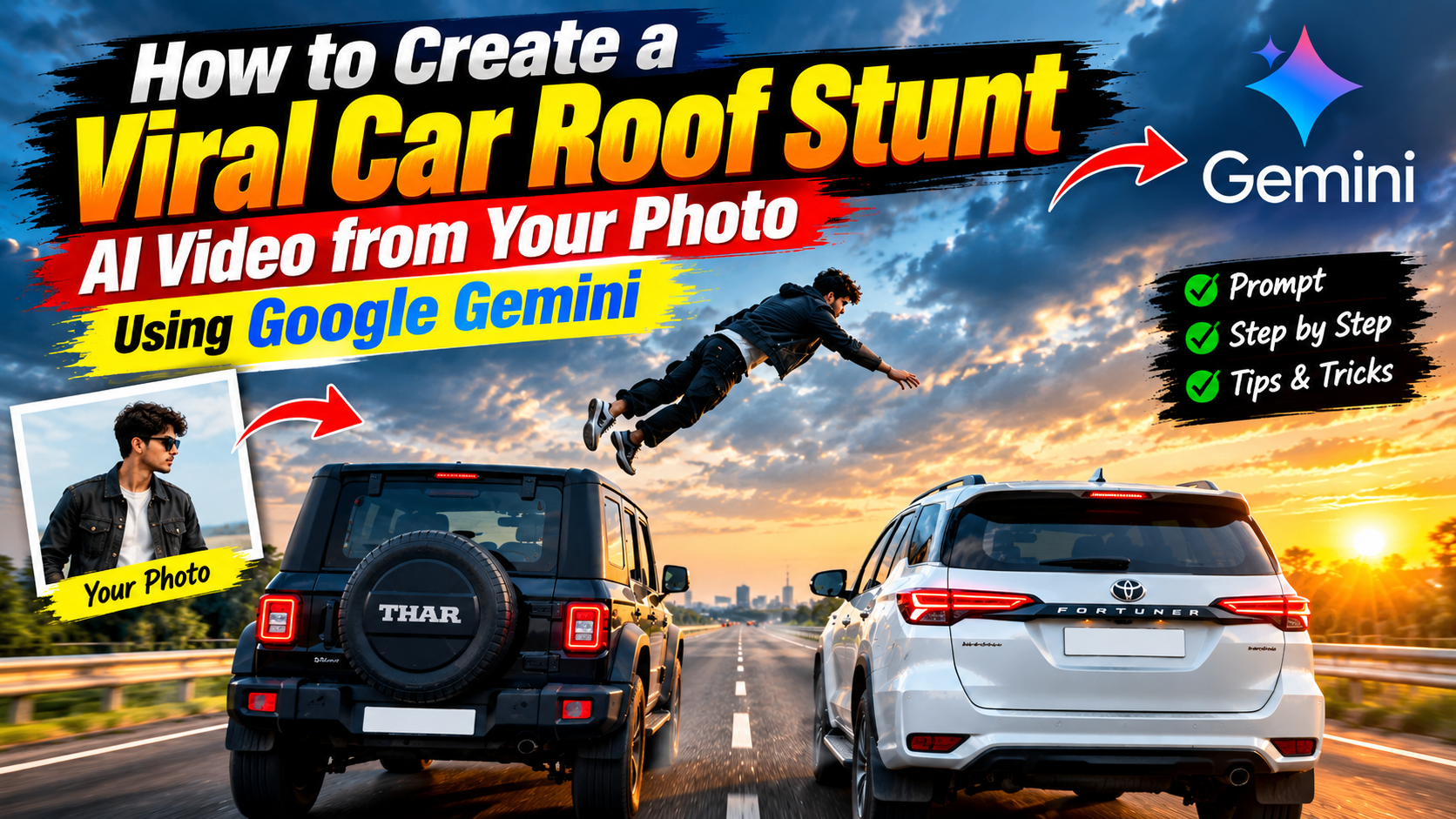
Have you seen those action videos on Instagram where someone jumps from one moving car to another and performs an amazing backflip? These videos look like scenes from an action movie, but many of them can be created using AI video generation.
The interesting part is that you can use your own photo to create a similar scene. You don’t need a camera, a professional video editor or any real stunt equipment. All you need is a suitable AI video generation tool, a reference photo and a well-written prompt.
In this tutorial, you’ll find a car roof stunt AI video prompt, along with a simple guide to creating your own video using Google Gemini’s available video generation features. I’ll also share a few tips to help you get a better result.
What Is the Car Roof Stunt AI Video Trend?
The car roof stunt video is a creative AI video trend inspired by action movies. It features a person standing on the roof of a moving car before jumping toward another vehicle and performing a backflip in mid-air.
The scene usually includes two cars travelling side by side on a highway. The person jumps from the first car and lands on the roof of the second one. A moving camera, realistic lighting and fast action make the video look dramatic.
What makes this trend interesting is the use of personal photos. Instead of using a random character, you can use your own image as a visual reference and create a fictional action scene featuring yourself.
You can also change the vehicles, road, lighting and camera angle to create a different look.
Why Are People Creating These AI Stunt Videos?
One reason these videos catch attention is the unexpected action. People are used to seeing ordinary photos and travel clips on Instagram. Watching someone appear in a dramatic car stunt scene is a completely different experience.
The personal touch makes the trend even more interesting. When you use your own photograph, the generated video feels more connected to you. It’s also a fun way to experiment with AI without having to record anything yourself.
Another advantage is the flexibility of AI video generation. You can try different prompts and visual styles until you find a version you like. These short clips are also suitable for sharing as Instagram Reels and YouTube Shorts.
Car Roof Stunt AI Video Prompt
Before generating your video, prepare a clear photograph that you want to use as a reference. Then copy the prompt below. It describes the vehicles, the stunt, the camera movement and the overall appearance of the scene.
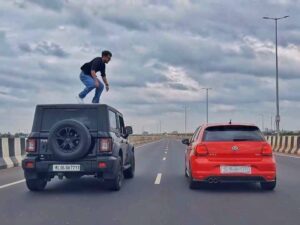
Create a cinematic, photorealistic action video using the uploaded photo as the main character reference. A young man resembling the person in the reference photo is standing on the roof of a matte black SUV travelling along a wide highway. A bright red hatchback is driving parallel to the SUV in the next lane. The young man suddenly jumps from the roof of the black SUV toward the red hatchback, performs a smooth acrobatic backflip in mid-air and lands on the roof of the red car. Show the complete jump and landing in one continuous action sequence. Keep the person's facial features, hairstyle, clothing and overall appearance as consistent as possible with the reference photo. Maintain realistic body proportions and natural movement throughout the video. Both vehicles move forward at a steady speed and maintain their relative positions. The environment features an open multi-lane highway, realistic road surfaces and an overcast sky. Use a wide-angle rear tracking camera that follows both cars and clearly captures the entire stunt. Add natural lighting, realistic vehicle reflections, subtle motion blur and cinematic action-movie visuals. Photorealistic details, smooth camera movement, realistic shadows, high-quality visuals, vertical 9:16 composition, suitable for Instagram Reels. The scene is fictional and entirely AI-generated. No dialogue, no text overlays, no extra people and no unnecessary camera cuts.
How to Create a Car Roof Stunt Video Using Google Gemini
Once your prompt and photo are ready, you can start creating the video.
Step 1: Open Google Gemini
Open the Google Gemini app or visit the Gemini website. Sign in using your Google account. Make sure your account has access to a compatible video generation feature.
Step 2: Select the Video Generation Feature
Look for the available video generation option in the app. The interface and available models may vary depending on your account, region and current Google features.
Step 3: Upload Your Photo
If image uploads are supported by the selected video feature, choose a clear photo from your phone’s gallery. A well-lit image with a clearly visible face is a good choice.
Step 4: Add the AI Video Prompt
Copy the car roof stunt prompt from this article and paste it into the prompt field. Make sure the photo is attached if the selected tool supports reference images.
Step 5: Generate Your Video
Submit your request and wait for the video to finish generating. Processing time can vary. If the first result doesn’t look right, you can adjust the prompt and try again.
Step 6: Preview and Save
Watch the generated video from beginning to end. If you’re happy with the result, save it using the available download option. You can then make any final adjustments in your preferred video editing app.
Note that video generation access, image input support and usage limits can change. Check the options available in your Gemini account before following these steps.
Create Your Video
How to Get Better Results from Your AI Video
Sometimes a video looks impressive at first but has small problems when you watch it closely. A few simple adjustments can help you improve the final result.
Use a clear photo
Start with a photo in which your face is easy to recognise. Avoid heavily filtered pictures or images where your face is partly hidden. This gives the AI a better visual reference.
Keep the action easy to understand
The main action is already quite complex. Describe the jump, backflip and landing in the correct order. Avoid adding too many unrelated movements or characters.
Pay attention to the camera angle
A rear tracking shot is a useful choice for this scene because it can show both vehicles and the jumping movement. If the camera is too far away, the stunt may become difficult to see.
Try different lighting conditions
An overcast sky gives the scene a natural action-film appearance. You can also experiment with a sunset setting or brighter daylight if you want a different visual style.
Check the final result before editing
Look closely at the character’s face, body movement and the position of both vehicles. If something looks strange, try changing the prompt instead of adding too many editing effects.
Common Problems You May Face
AI video generation can produce unexpected results, especially when a scene contains fast movement. Here are a few common issues to watch out for.
- Face changing during the video: The AI may not maintain the same facial identity throughout the action. A clear reference photo and specific instructions may help.
- Unnatural body movement: Backflips and mid-air movements can be difficult to generate consistently. Simplifying the action may improve the result.
- Cars changing positions: Sometimes the vehicles may move unpredictably or overlap. Make the vehicle positions and directions clear in your prompt.
- Incomplete landing: The AI may show the jump but fail to generate a convincing landing. Try describing the entire movement in a simple sequence.
- Poor camera movement: If the camera loses sight of the person, the main action may be unclear. Specify a continuous tracking shot that keeps both cars visible.
Don’t expect every generation to be perfect. Small changes to the prompt can make a difference, and some limitations depend on the video model itself.
Frequently Asked Questions
Can I create a car roof stunt AI video with my own photo?
Yes, provided your chosen video generation tool supports reference-image uploads. You can use your photograph to guide the appearance of the main character.
Is Google Gemini enough to create this video?
A compatible Gemini video generation feature may be enough to create the clip. Additional editing is optional and can be done using a separate video editing app.
Why does the AI change my face in the video?
Fast movements, changing camera angles and complex scenes can make it difficult for AI models to preserve facial identity. A clear reference photo and identity instructions may help, but they don’t guarantee perfect consistency.
Can I change the car colours and models?
Yes. You can edit the prompt to use different vehicle models, colours and environments. The generated result will depend on the model’s ability to follow your instructions.
Can I create this video for Instagram Reels?
Yes. You can request a vertical 9:16 video if that format is supported by your selected tool. You can also adjust the framing in a video editor before uploading it.
Is Google Gemini video generation free?
Availability and usage limits depend on Google’s current plans, region and account eligibility. Check the Gemini app for the latest details.
Is this car stunt actually real?
No. This tutorial describes a fictional AI-generated scene. Never attempt to jump between moving vehicles or perform similar dangerous stunts in real life.
Conclusion
Turning a simple photo into a dramatic car stunt video is an interesting way to explore AI video generation. With a suitable reference image and a clear prompt, you can experiment with a fictional action scene without filming anything yourself.
The first result may not look exactly as expected, so take some time to review the video and adjust the prompt when necessary. Even a small change to the camera direction or action description can affect the final output.
Once you have a version you’re happy with, add some suitable music, trim any unnecessary frames and prepare your video for sharing.
Have fun experimenting with different ideas, and remember that these stunts belong on screen, not on the road.