AI video generation has become much more interesting than simply creating a random video from text. With the right photo and a well-written prompt, you can turn a normal picture into a cinematic video with realistic movement, camera motion, lighting and atmosphere.
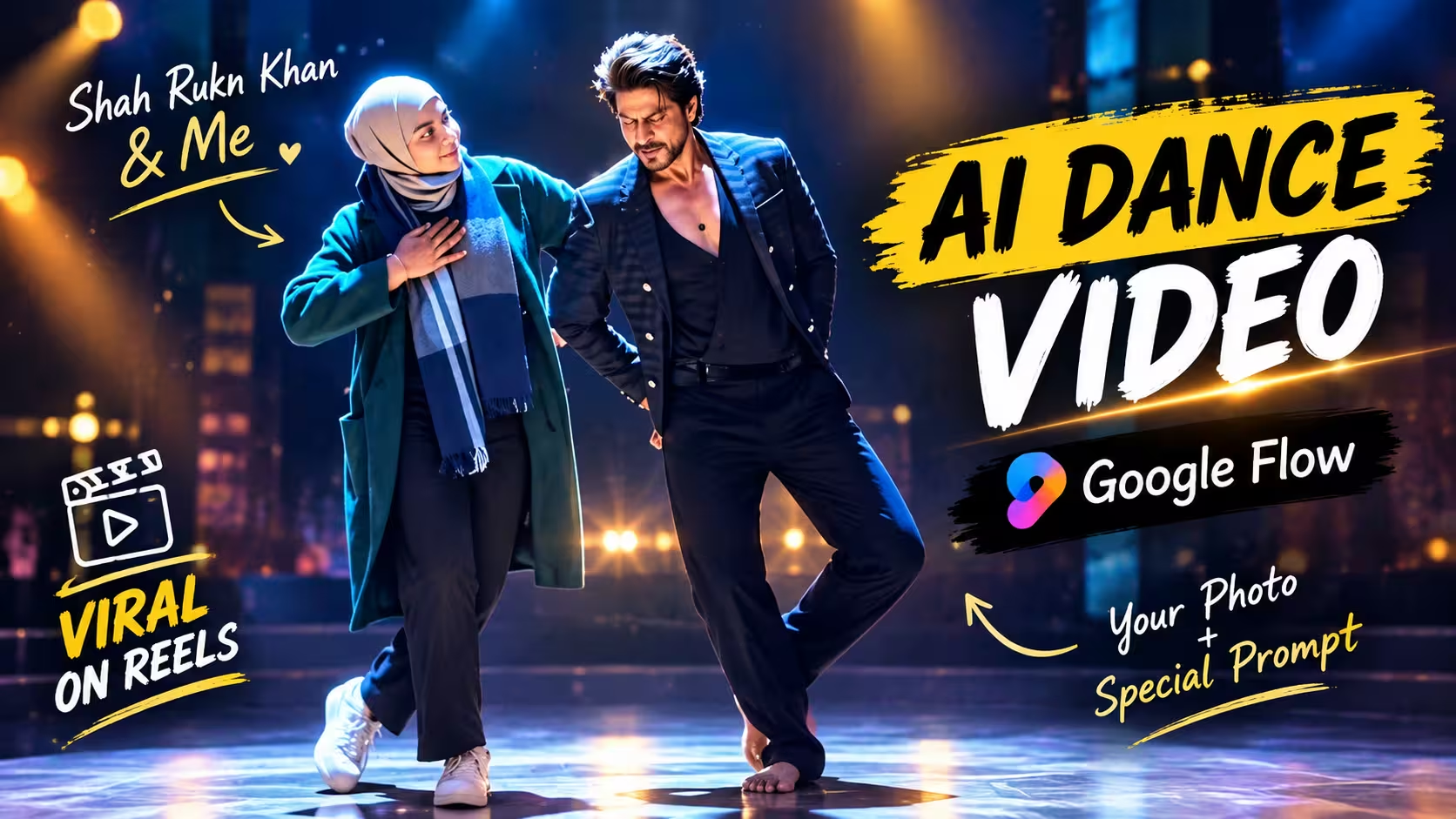
One of the interesting ways to use Google Flow is to create a cinematic dance video using your own photo. Instead of starting with a completely imaginary character, you can use your photo as the visual reference and describe how you want the person to move and how the scene should look.
In this guide, I’ll explain how you can create this type of AI dance video using Google Flow. The process is simple, but a few small details can make a big difference in the final result.
What Is an AI Dance Video?
An AI dance video is a short video created with an AI video generation tool. You can provide an image of a person and use a text prompt to describe the movement, environment, camera style and overall appearance.
For example, you can turn a simple portrait into a cinematic stage performance. The person can appear to move naturally while the camera follows the performance with smooth cinematic movements.
The quality of the result depends heavily on the reference image, prompt and instructions you provide.
Why Is This Video So Popular?
This type of AI video is becoming popular because it turns a simple photo into something that looks like a real cinematic performance. People enjoy seeing their own face or their partner’s face in creative scenes that would normally require a professional photoshoot or video setup. The romantic couple concept also makes the video more emotional and engaging, which makes it perfect for Instagram Reels, YouTube Shorts and other social media platforms. Another reason is that creating the video is quite simple with AI tools like Google Flow. You only need suitable photos and a good prompt to create a unique video that you can customize and share with your friends and followers.
Ai Dance Prompt ⬇️
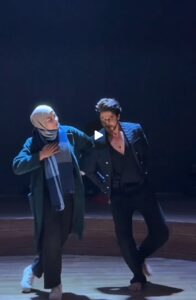
Create a highly realistic cinematic Bollywood dance video featuring the girl shown in the reference image performing alongside Shah Rukh Khan. Use the uploaded image as the girl’s strict identity reference. Preserve her exact facial identity, face shape, eyes, nose, lips, skin tone, hairstyle, age, natural skin texture, body proportions and overall appearance. Do not beautify, reshape, slim, age or modify her face in any way.
Show both performers dancing together in a graceful and natural Bollywood-style performance. Their choreography should feel coordinated, elegant and believable, with smooth hand gestures, realistic footwork, natural body movement, subtle smiles and authentic interaction.

Set the performance on a large premium Bollywood stage with a dramatic cinematic atmosphere, warm golden spotlights, soft glowing lights, subtle stage haze and a realistic audience ambience in the background. Keep the environment detailed but natural.

Maintain accurate human anatomy, realistic hands and facial expressions, natural hair and fabric movement, believable shadows and physically realistic motion. Add gentle cinematic camera movement, smooth tracking shots and natural depth of field. The final video should look like a professionally filmed Bollywood performance, photorealistic and free from cartoonish or artificial-looking effects.
How to Create the AI Dance Video in Google Flow
If you also want to create a cinematic AI dance video using your own photo, then below I am explaining the complete process in a simple way. If you follow the steps given below, you can create a similar video using Google Flow in just a few minutes.
- First of all, open Google Flow and log in with your Google account.
- Now come back to this post and copy the special AI dance video prompt given below the video.
- After copying the prompt, go back to Google Flow and click on New Project to start creating your video.
- Now click on the Plus (+) icon and upload the photo that you want to use in your video. If the video includes two people, upload both reference photos.
- After uploading the images, select the Frame to Video option so that Flow can create a video from your uploaded image.
- Now choose the video duration. For this type of short cinematic video, you can select 10 seconds and choose the 16:9 aspect ratio.
- After that, select the uploaded image or frame and paste the special prompt that you copied from this post into the prompt box.
- Once everything is ready, click on the Generate/Send button. Google Flow will now process your image and prompt and start generating the video.
- Wait for the generation to finish. Depending on the current Flow interface and generation load, it may take a little time before your video is ready.
- Once the video is generated, preview it carefully. If the movement or camera angle doesn’t look right, you can try generating another version with the same reference image and prompt.
- Finally, you can download or use the generated clip in your preferred video editing app. Add a suitable song, make a few simple edits if needed, and then you can share the finished video on Instagram, YouTube Shorts or other social media platforms.
Create Your Video
Keep the Movement Natural
One of the biggest challenges with AI-generated dance videos is unrealistic body movement.
Sometimes hands, legs or other parts of the body can move in an unnatural way. To reduce this type of problem, your prompt should clearly describe smooth and realistic movement.
Avoid asking for too many complicated actions at the same time.
Simple, controlled choreography can often look more convincing than extremely fast or complicated movements.
You can also generate multiple versions and choose the one with the most natural movement.
Try Different Versions
Don’t worry if your first generation isn’t perfect.
AI video generation is often an experimental process. A small change in the prompt can produce a noticeably different result.
If the first video has unnatural movement, try simplifying the action.
If the camera feels too static, describe a smoother camera movement.
If the lighting doesn’t look right, describe the stage lighting more clearly.
Instead of completely rewriting everything every time, change one or two parts of the prompt and compare the results.
Make the Video Suitable for Instagram and Reels
If your main goal is Instagram Reels, YouTube Shorts or similar platforms, a vertical composition is usually a good choice.
A vertical video gives the subject more space on a phone screen and works naturally with short-form content.
When writing the prompt, you can mention a vertical cinematic composition if your generation workflow supports that format.
Also make sure the important parts of the subject are not placed too close to the edges of the frame.
Tips for Better Results
Here are some simple tips that can improve your AI dance video:
Use a high-quality reference photo: A clear image gives the AI better visual information.
Keep instructions consistent: Avoid giving contradictory directions in the same prompt.
Describe movement clearly: Explain what the subject is doing instead of using only a general word like “dance.”
Don’t overload the prompt: More words do not automatically mean a better result.
Generate multiple versions: The first result may not always be the best one.
Pay attention to hands and body movement: These areas can sometimes look unnatural in AI-generated videos.
Use realistic lighting: Natural shadows and controlled lighting can make the result look more believable.
Keep the visual style consistent: This is especially useful when creating several clips for the same project.
Can You Create a Longer Dance Video?
Yes, you can build a longer sequence by creating multiple short clips and combining them.
This can actually be easier than asking the AI to create a long and complicated performance in one generation.
For example, you could create one clip showing the beginning of the performance, another showing a different dance movement and another showing a wider camera shot.
You can then arrange the clips together using a video editor.
This gives you more control over the pacing and allows you to remove clips that don’t look natural.
Final Result
After generating the video, watch the entire clip carefully instead of checking only the first few seconds.
Look for changes in the face, hands, fingers, clothing, body proportions and background.
If something looks unnatural, don’t immediately assume that the whole idea has failed. Try generating another version with a slightly improved prompt.
Sometimes the second or third generation can be much better than the first.
Conclusion
Creating a cinematic AI dance video from your own photo is a fun way to experiment with modern AI video generation. Google Flow provides tools that can work with images and text prompts, giving you more control over the subject, movement and visual style.
The most important thing is to start with a good reference photo and a clear prompt. Don’t expect every generation to be perfect. Experiment with the movement, camera direction, lighting and environment until you get a result that feels natural.
If you’re using the special dance prompt shared in this tutorial, simply add it to the prompt section in Google Flow and follow the process above.
AI video tools are improving quickly, so the interface and available features may change over time. If an option looks slightly different in your Google Flow account, focus on the same basic workflow: add your visual reference, describe the desired action and style, generate the video, and refine the result when necessary.
The best results usually come from combining a strong reference image with simple, clear instructions and a little experimentation.