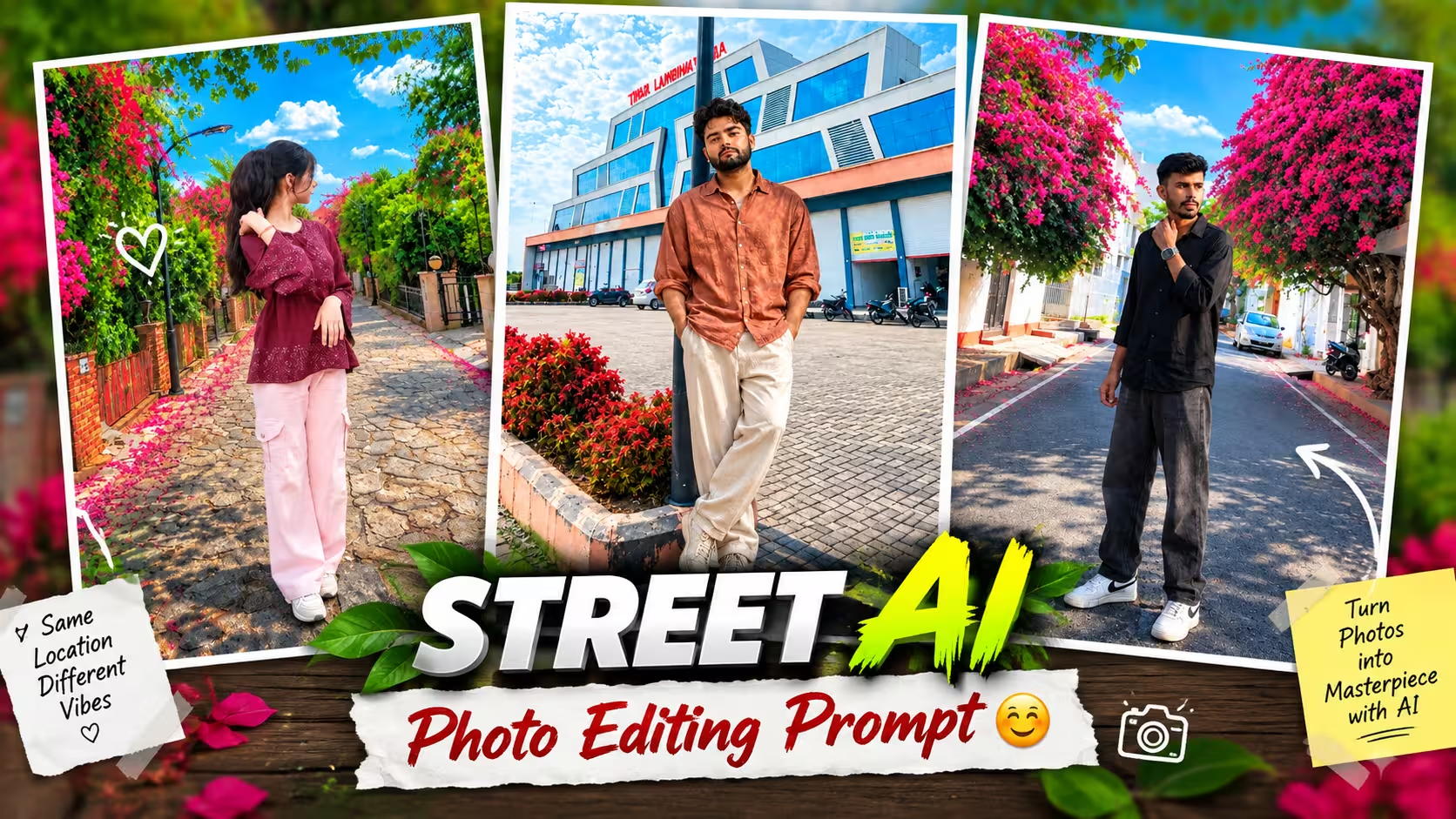
Have you ever seen those eye-catching outdoor photos where a simple street, park, or walkway looks like a scene from a professional photoshoot? The good news is that you don’t always need an expensive camera, a professional location, or complicated editing software to create a similar look.
With the right AI street photo editing prompt, you can transform an ordinary portrait into a realistic outdoor scene while keeping the person’s natural appearance. You can choose a colorful street, a peaceful garden, a beautiful brick pathway, a flower-covered road, or another location that matches your style.
The most important part is not simply asking for a “beautiful photo.” A detailed and natural prompt helps the tool understand the environment, lighting, pose, clothing, camera perspective, and overall mood you want.
In this guide, you’ll learn how to create better outdoor street-style photos with ChatGPT, what makes a prompt effective, common mistakes to avoid, and how to customize the result for your own photos.
What Is an AI Street Photo Editing Prompt?
An AI street photo editing prompt is a written description that tells an image editing tool how you want your photo to look.
Instead of manually changing the background, lighting, colors, shadows, and composition, you can describe the desired result in simple language.
For example, you might want your photo to look like you are standing on a beautiful residential street surrounded by colorful flowers and green trees. You can also specify details such as:
- Natural daylight
- Cinematic colors
- Realistic shadows
- Casual clothing
- A relaxed pose
- A clean background
- Professional photography
- Realistic skin texture
- Vertical portrait composition
The more clearly you describe the important elements, the easier it is to get a result that matches your idea.
However, adding too many unnecessary instructions can sometimes make the result confusing. A good prompt should be detailed enough to guide the image but simple enough to understand.
Why Outdoor Street Photos Look So Attractive
Outdoor portraits naturally have several elements that make a photograph interesting.
A colorful street can provide depth in the background, while trees and flowers create a natural frame around the subject. Sunlight adds highlights and shadows, and a long road or pathway can create leading lines that guide the viewer’s eyes toward the person.
This is one reason street-style images work particularly well for social media profile pictures, Instagram posts, thumbnails, and personal photography projects.
You can also experiment with different environments. For example, instead of using the same type of road every time, you can create:
- A flower-covered residential street
- A peaceful garden pathway
- A modern city sidewalk
- A European-style street
- A colorful neighborhood
- A sunset walkway
- A rainy street scene
- A green park surrounded by trees
The idea is to create a location that complements the person instead of making the background unnecessarily complicated.
AI Street Photo Prompt & Background
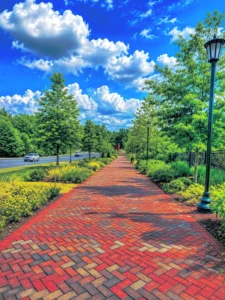
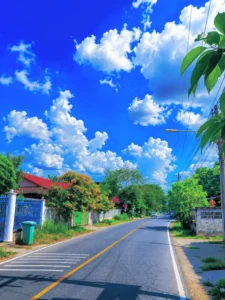
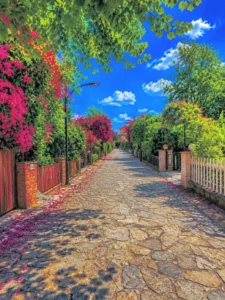
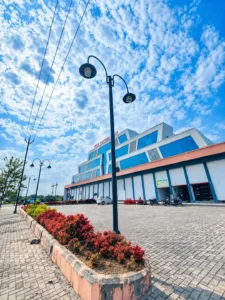
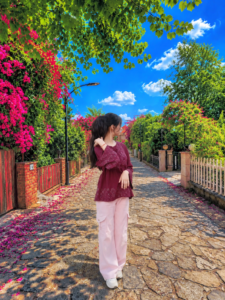
Place this person in the second photo in a realistic manner and adjust them to match the second photo; do not change anything else. Keep the background exactly as it is—do not alter it at all—and do not change the face or body size. Enhance the image to 8K quality and set the aspect ratio to 3:4.
How To Create Ai Street Photo
Below I am telling you the process of making AI street photos so that you can easily make any of your photos look really professional.
- First of all you have to download the Chatgpt app from Play Store and login to it.
- After that you have to come to this post and long press on any background from here and download it.
- Scroll down a bit and copy the prompt and then scroll down a bit and click on the Create Your Image button.
- Click on the plus icon of Chatgpt and upload the downloaded background along with one of your photos.
- Paste the copied promt and click on send. Chatgpt will create your MST photo in a short while.
- You can create more such photos of yours by following the same process.
Common Mistakes to Avoid
Creating a good prompt doesn’t mean adding hundreds of instructions.
One common mistake is using too many contradictory details. For example, asking for strong sunlight, a dark night atmosphere, soft indoor lighting, and dramatic fog at the same time can confuse the image generator.
Another problem is requesting unrealistic body proportions or overly perfect skin. These details can make the final result look less natural.
It’s also better to avoid repeatedly adding words such as “ultra realistic,” “8K,” and “masterpiece” throughout the prompt. One clear instruction is generally enough.
Instead, focus on the actual visual details that matter: location, lighting, pose, clothing, perspective, and realism.
Tips for Better Results
Before creating your final image, consider the original photo you’re using.
A clear photo with good lighting generally gives the editing tool more useful information. Images where the face and body are clearly visible can also make it easier to maintain a natural appearance.
Try to avoid heavily blurred or extremely low-quality source photos when possible.
It can also help to choose a background that matches the perspective of your original photograph. If the person is photographed from a full-body angle, a full-body outdoor composition will usually look more natural than trying to place them into a tightly cropped scene.
Most importantly, don’t be afraid to make small changes. If the first result isn’t exactly what you imagined, adjust the prompt instead of completely rewriting everything.
Frequently Asked Questions
Can I use my own photo for this type of editing?
Yes. You can use a suitable portrait as the main reference and describe the outdoor environment you want. For the most natural result, use a clear image where the person is visible properly.
Can I change the background without changing my face?
Yes. You can specifically ask the image editor to preserve your facial identity, face shape, hairstyle, and other important characteristics while changing the environment.
What type of photo works best?
A clear portrait or full-body photograph with decent lighting generally works well. The more visible and clear the subject is, the easier it is to maintain natural details.
Can I create these images for Instagram?
Yes. You can create vertical compositions suitable for Instagram posts, stories, profile images, or other social media formats. Choose the aspect ratio according to where you plan to use the image.
Why does my edited image sometimes look unrealistic?
This can happen when the lighting, perspective, shadows, or proportions of the person don’t match the new environment. A more specific prompt that asks for realistic integration can help improve the result.
Conclusion
Creating realistic outdoor photos with an AI street photo prompt and background is a simple way to give your ordinary portraits a fresh and professional look. By choosing the right background, lighting, pose, and camera style, you can create images that feel natural instead of heavily edited.
For the best results, keep your prompts clear and focus on realistic details such as natural shadows, accurate proportions, skin texture, and matching perspective. You can also experiment with different streets, gardens, pathways, flowers, and city locations to create a style that suits your photo.
The key is to keep the person looking natural while making the new background blend seamlessly with the original image.