
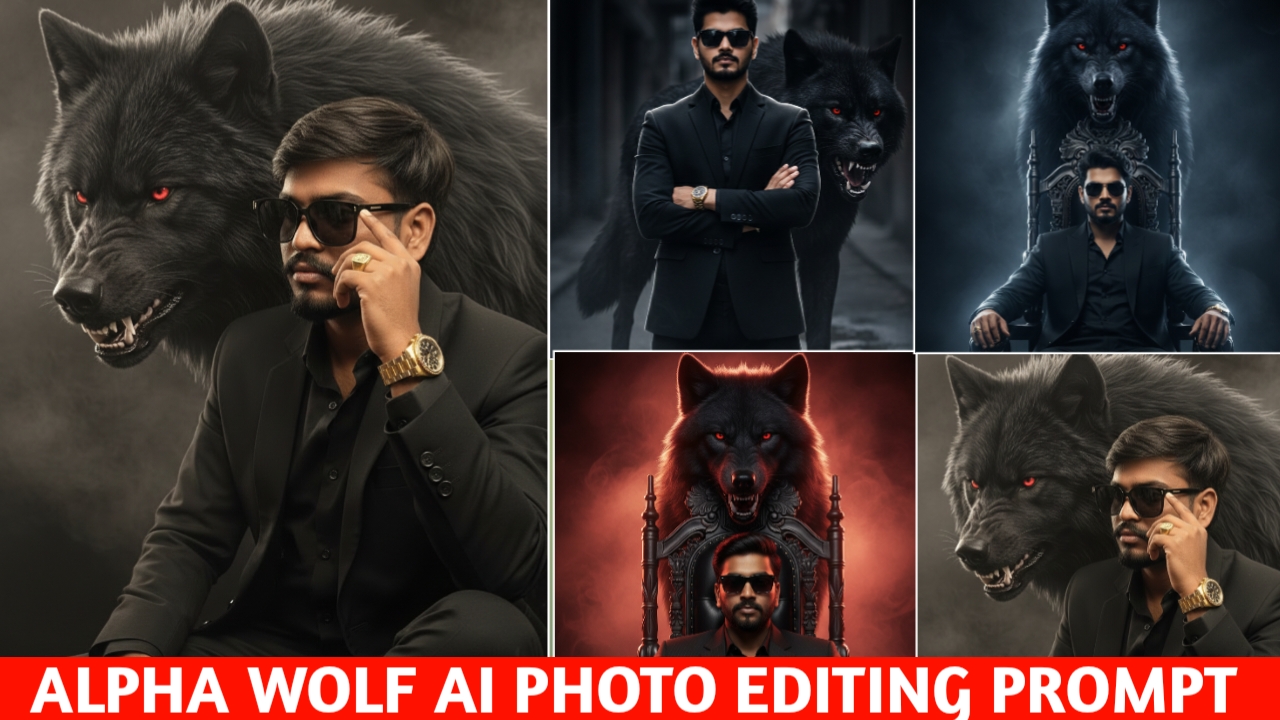
AI-generated photos are becoming increasingly popular on social media, with people experimenting with different creative concepts and cinematic styles. One interesting trend is creating a dramatic portrait featuring a black wolf in the background.
In this concept, the person is dressed in a stylish black outfit while a powerful black wolf appears behind them. Dark surroundings, dramatic lighting, subtle fog, and realistic details give the image a cinematic and premium editorial appearance.
The good thing is that you don’t need advanced photo-editing skills to try this style. With a clear reference photo and a well-written AI prompt, you can create a similar concept using an AI image-generation tool.
In this guide, I’ll explain how to create an Alpha Wolf AI photo and provide prompts that you can customize according to your preferred style.
Detailed Alpha Wolf AI Photo Editing Prompt
You can use the following prompt to create a cinematic black-wolf portrait. Feel free to adjust the outfit, lighting, background, or composition according to your preference.

An ultra-realistic cinematic portrait of the man from the reference image, preserving her exact facial identity, geometry, and expression. She is sitting confidently in a dar chair, wearing a premium black suit, black shirt, and black sunglasses. Her hand is raised near her face, prominently featuring a luxury gold watch and a gold ring. The lighting the core focus: a strong, hard red rim light strikes ONLY from the left side, creating a sharp red edge highlight along her face, shoulder, and suit The right side is shrouded in deep shadows with only minimal soft fill light Directly behirbikeser stands a massive black wolf with glowing red eyes and visible sharp teeth in a protective snarl. The background background is a dark, moody studio with subtle fog. Rendered with #42 technical characteristics of a Sony Al, 85mm f1.4 lens at fi6, ISC 100, showing hyper-realistic skin texture, detailed fur, ob a cinematic editorial color grade. 4K resolution, premium glarity no text"}",

"An ultra-realistic, cinematic close-up portrait using the exact facial identity and geometry of the woman in the reference mage. She is sitting confidently in an all-black tailored suit an black sunglasses. One hand is elegantly raised near her face showcasing a luxury gold watch and a gold ring on her finger. Directly behind her shoulder, the massive head of a black wolf appears, featuring glowing red eyes, sharp barec teeth, and a fierce, protective snarl. The lighting is dramatican cinematic, with a focus on sharp facial detail and realistic skir and fur textures. Dark, moody studio background with sep shadows and subtle atmospheric fog. Sony Al aesth 85mm f1.4 lens style, premium editorial clarity, 16K HD qualitying text"}", 74
"thought: "I will generate an image that strictly adheres to the user's request for an ultra-realistic portrait preserving subject's identity from the reference photo. I'll include the specific clothing (black suit, sunglasses), accessories

An ultra-realistic cinematic portrait of the man from the reference image, preserving her exact facial identity, geometry, and expression. She is sitting confidently in a dar chair, wearing a premium black suit, black shirt, and black sunglasses. Her hand is raised near her face, prominently featuring a luxury gold watch and a gold ring. The lighting the core focus: a strong, hard red rim light strikes ONLY from the left side, creating a sharp red edge highlight along her face, shoulder, and suit The right side is shrouded in deep shadows with only minimal soft fill light Directly behirbikeser stands a massive black wolf with glowing red eyes and visible sharp teeth in a protective snarl. The background background is a dark, moody studio with subtle fog. Rendered with #42 technical characteristics of a Sony Al, 85mm f1.4 lens at fi6, ISC 100, showing hyper-realistic skin texture, detailed fur, ob a cinematic editorial color grade. 4K resolution, premium glarity no text"}",
How to Create an Alpha Wolf AI Photo
Follow these simple steps to create your image:
- Open Google Gemini on your smartphone or computer.
- Sign in with your Google account if you are not already signed in.
- Copy the Alpha Wolf prompt provided in this article.
- Open the image-generation feature in Gemini.
- Upload a clear reference photo of yourself.
Paste the copied prompt into the text box. - Review the prompt and reference image, then start the image-generation process.
- Wait for the AI tool to process your request.
- The processing time can vary depending on the tool and current server conditions.
- Check the generated image and see whether the face, outfit, wolf, lighting, and overall composition look the way you want.
- If necessary, modify the prompt or use another reference photo and generate another version.
- Once you are satisfied with the result, save the image to your device.
Note: AI tools can update their interface and features over time, so the buttons or options shown on your device may be slightly different.
Create Your Image
How to Choose the Best Reference Photo
The quality of your reference image can have a significant impact on the generated result. Keep the following tips in mind when selecting a photo.
1. Use a Clear Photo
Choose a photo where your face is clearly visible and the image is not heavily blurred. A reasonably well-lit portrait usually works better as a reference.
2. Keep Your Face Visible
Avoid using a reference image where your face is heavily covered by accessories, masks, or other objects. A clearly visible face gives the AI more facial details to work with.
3. Choose Balanced Lighting
Try to use a photo with balanced lighting. Extremely dark or overexposed images may make facial details harder for an AI tool to interpret.
4. Use a Natural-Looking Photo
A simple selfie or portrait can work well as a reference image. You don’t necessarily need a professionally photographed picture.
How to Improve the Face Similarity
AI-generated images may not always reproduce a person’s face exactly as it appears in the reference image. The final result can depend on the quality of the reference photo, the prompt, and the AI tool being used.
If the generated face does not look close enough to your reference, try using a clearer photo or modify the prompt with additional instructions about preserving the person’s recognizable facial characteristics.
Avoid expecting a guaranteed 100% facial match because AI-generated results can vary from one generation to another.
Tips for a Better Alpha Wolf Image
For a more realistic result, you can experiment with different elements of the prompt.
- Use a clear and high-quality reference photo.
- Keep the lighting description specific.
- Avoid adding too many unrelated elements to the prompt.
- Try different camera perspectives and compositions.
- Experiment with dark studio, outdoor, or cinematic environments.
- If the wolf looks unrealistic, ask the AI to create more natural fur, anatomy, lighting, and proportions.
- Generate multiple variations and choose the one that looks most natural.
Conclusion –
Creating a cinematic Alpha Wolf AI photo can be a fun way to experiment with AI image-generation tools. With a clear reference photo and a detailed prompt, you can create a portrait featuring a black outfit, dramatic lighting, and a realistic wolf in the background without needing advanced photo-editing skills.
You can also customize the prompt according to your preferences. For example, you can change the outfit, lighting color, background, camera angle, or overall photography style to create a different version of the image.
AI-generated images can vary from one generation to another, so don’t worry if the first result isn’t exactly what you expected. Try adjusting the reference photo or prompt until you achieve a result that suits your preferred style.
If you enjoyed this tutorial, you can explore more AI photo-editing ideas and creative image-generation techniques in our other articles.
Ai editing Instagram dp
New ai photo code bajo