
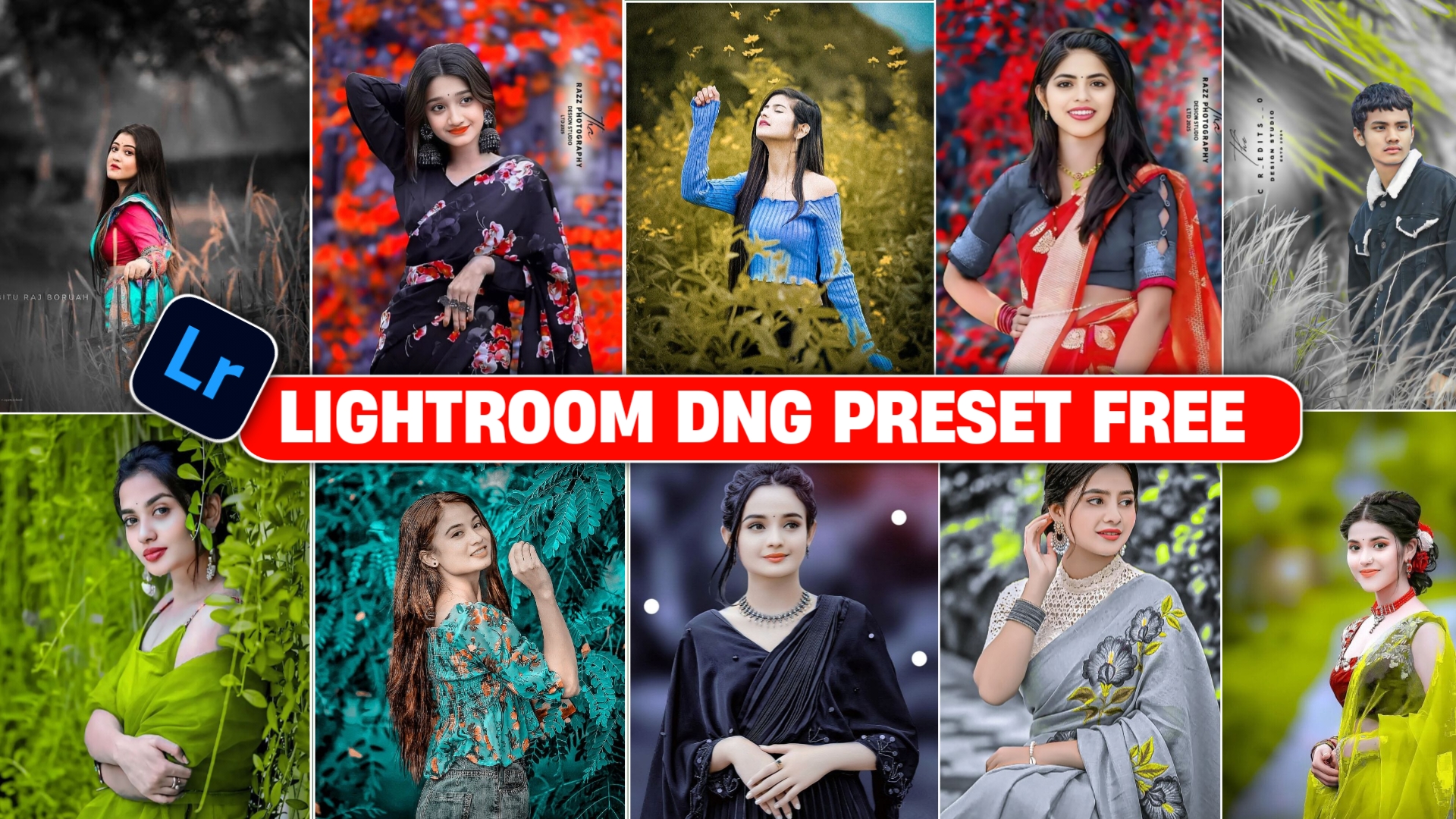
Taking photos has become a regular part of our daily lives. Whether you use a smartphone or a camera, sometimes the original image does not look exactly the way you want. The lighting may be slightly dull, colors may look flat, or the image may need better contrast and sharpness.
Photo editing apps can help improve these areas, but beginners often find manual color grading confusing. You may need to adjust exposure, contrast, highlights, shadows, saturation, temperature, and several other settings.
This is where Lightroom presets can be useful.
A preset is a collection of editing adjustments that can be applied to another photo. Instead of manually changing every setting, you can apply a suitable preset and then make small adjustments according to your image.
In this guide, you will learn what DNG presets are, how they work in Lightroom, how to import them, and how to improve the overall appearance of your photos.
What Is Adobe Lightroom?
Adobe Lightroom is a photo editing application designed for both beginners and experienced photographers. It provides tools for adjusting colors, exposure, contrast, sharpness, highlights, shadows, and other aspects of an image.
One of its useful features is the ability to save and apply editing settings as presets.
For example, if you create a particular color style that you like, you can save those adjustments and use them on other photographs. This can save time when editing multiple images with a similar lighting condition.
Lightroom is available on mobile devices as well as desktop platforms, although the available features can vary depending on the version and plan you use.
What Is a DNG Preset?
DNG stands for Digital Negative. It is an image format developed by Adobe for storing raw image data and related information.
A DNG file can also be used as a convenient way to transfer Lightroom editing settings. When a DNG image contains the desired adjustments, you can use those settings as a starting point for editing another photograph.
However, a preset does not automatically make every photograph look identical. The final result depends on factors such as lighting, camera quality, skin tones, background, and the original exposure of the image.
Therefore, after applying a preset, you may need to adjust exposure, white balance, contrast, or other settings manually.
Why Use Lightroom Presets?
The biggest advantage of presets is saving editing time.
Instead of starting from zero every time, you can apply an existing style and then customize it.
Some common uses include:
- Creating a consistent color style
- Improving contrast and tonal balance
- Creating warm or cool color looks
- Preparing photos for social media
- Maintaining a similar appearance across multiple images
- Using a starting point for further manual editing
Presets should be considered a starting point rather than a guaranteed one-click solution.
Types of Lightroom Presets
Different editing styles can be created depending on the desired appearance of a photograph.
For example:
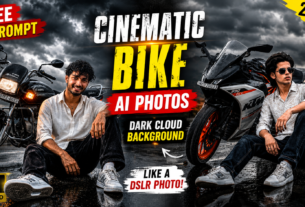
Biker or Outdoor Style
Outdoor photographs can sometimes benefit from stronger contrast and slightly deeper shadows. A suitable preset can provide a cinematic starting point.
Dual-Color Style
A dual-color look uses contrasting tones to create a more stylized appearance. The exact colors can be adjusted according to the photograph.
Portrait Style
Portrait editing generally focuses on balanced skin tones, natural contrast, and controlled highlights.
Cinematic Style
Cinematic editing often uses controlled highlights, shadows, contrast, and color tones to create a particular mood.
Soft Color Style
A softer style can be created by reducing harsh contrast and using subtle color adjustments.
The same preset can look different on different photographs, so manual correction is often necessary.
How to Import a DNG File Into Lightroom Mobile
If you have a DNG preset that you own or have permission to use, you can generally import it into Lightroom and use its editing settings.
The exact interface may vary depending on your Lightroom version, but the general process is:
- Download the DNG file to your phone.
- Open Adobe Lightroom.
- Import the DNG image into your Lightroom library.
- Open the imported DNG file.
- Open the editing options.
- Copy the available editing settings.
- Open the photograph you want to edit.
- Use the paste-settings option to apply the copied adjustments.
- Check the result and make additional adjustments if necessary.
If the colors look too strong or too dark, don’t assume that something is wrong with Lightroom. The preset may simply need to be adjusted for the particular photograph.
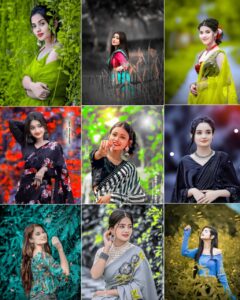
How to Improve Photo Quality in Lightroom
A preset can change the overall color style, but you can further improve your photograph using Lightroom’s manual tools.
1. Exposure
Exposure controls the overall brightness of the image.
If the photograph is too dark, slightly increasing exposure can help. If the image is already bright, increasing exposure too much can remove detail from highlights.
2. Contrast
Contrast controls the difference between lighter and darker areas.
A small increase can make an image appear more defined, while excessive contrast can make the photograph look unnatural.
3. Highlights and Shadows
Highlights affect brighter areas, while shadows control darker areas.
Reducing highlights can sometimes recover detail in bright portions of a photograph. Increasing shadows can reveal details in darker areas.
4. Texture
Texture can emphasize smaller details without affecting the overall contrast as strongly as some other tools.
Use it carefully, especially on portraits, because excessive texture can make skin appear unnecessarily harsh.
5. Clarity
Clarity affects local contrast and can make certain details appear more pronounced.
For portraits, a moderate setting is generally preferable to an extreme adjustment.
6. Dehaze
Dehaze can reduce the appearance of atmospheric haze and increase overall definition. It can be useful for outdoor photographs, but excessive use may produce an unnatural result.
Using the Detail Panel
The Detail section contains tools that can help improve the appearance of an image.
Sharpening
Sharpening can make edges and fine details appear more defined. However, too much sharpening can introduce unwanted artifacts.
Noise Reduction
Photos taken in low-light conditions may contain visible noise. Noise reduction can help make these areas smoother.
Keep in mind that heavy noise reduction can also remove fine details.
Color Noise Reduction
Color noise may appear as unwanted colored spots or patches. Lightroom provides a separate option for reducing this type of noise.
The best settings depend on the original photograph, so there is no single value that works perfectly for every image.
Can Lightroom Presets Be Used for Videos?
Depending on the Lightroom version and available features, some editing adjustments can also be useful when working with video.
However, a preset designed for photographs should not automatically be expected to produce the same result on every video clip.
Video footage has different lighting conditions, frames, and color characteristics, so additional adjustments may be necessary.
Important Things to Remember Before Using Presets
Presets are useful, but they are not a replacement for understanding basic photo editing.
A preset may look excellent on one photograph and completely different on another. For example, an image captured during daylight may require very different adjustments from a night-time photograph.
You should also avoid excessive skin-smoothing or color adjustments. Natural-looking edits generally produce a better result than aggressive changes.
Most importantly, only download or distribute DNG files and presets that you created yourself or have permission/licensing rights to share.
If a preset belongs to another creator, check its usage terms before redistributing the file or providing a download link.
Frequently Asked Questions
Are Lightroom presets free?
Some presets are available for free, while others are paid. Always check the creator’s licensing terms before downloading or sharing them.
Can beginners use Lightroom presets?
Yes. Presets can be a useful starting point for beginners because they provide a predefined set of adjustments.
Does a preset work perfectly on every photo?
No. Different photographs have different lighting, exposure, colors, and subjects. Additional adjustments are often required.
Can I create my own Lightroom preset?
Yes. You can manually edit a photograph and save the editing settings as a preset, depending on the Lightroom version and features available to you.
Does a preset increase the actual resolution of a photo?
No. A preset mainly changes editing parameters such as color, contrast, and tone. It does not magically convert a low-resolution photograph into a true high-resolution image.
Conclusion
Lightroom presets can make photo editing faster and easier by providing a ready-made collection of editing adjustments. They are particularly useful when you want to maintain a consistent visual style across multiple photographs.
However, the best results usually come from combining presets with manual adjustments. After applying a preset, check exposure, highlights, shadows, color, sharpening, and other settings according to your particular photograph.
If you are sharing DNG presets on your website, make sure the files are your own or properly licensed for redistribution. This is especially important when publishing downloadable files on a monetized website.
With a little practice, Lightroom’s preset and manual editing tools can help you develop your own editing style rather than depending entirely on a preset.

Wgrfwt
Rwys3id64rburw mesehdrbeis2hfrru ceuddhgdtowiw64t3uyd7tr
Cricket
Rcb
vhkegxogvozkxghpjzffrylwuwmnxy